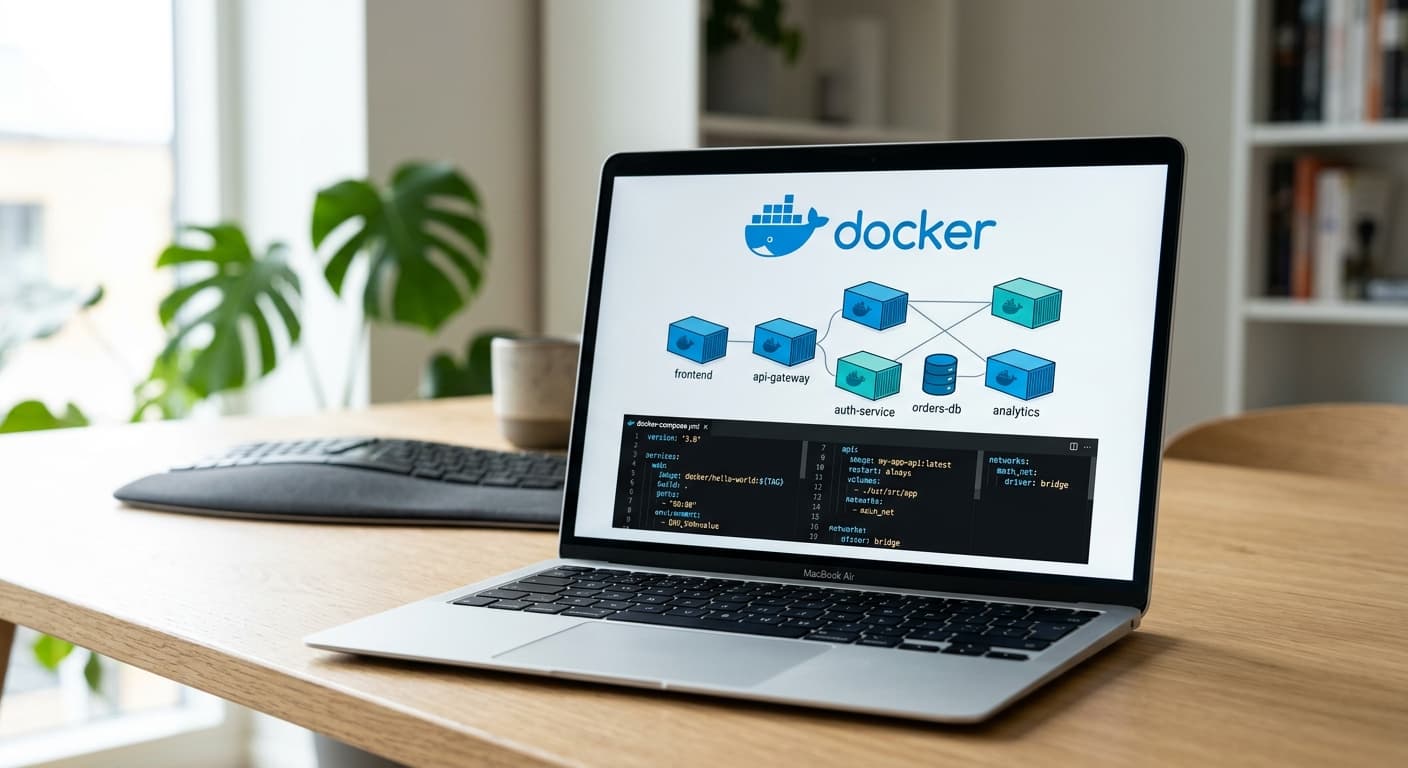
Docker Compose: A Beginner's Guide to Container Orchestration
Learn how to use Docker Compose to manage multi-container applications in your homelab with practical examples and best practices.
Docker Compose: A Beginner's Guide to Container Orchestration
Docker makes running applications in containers easy. But real homelabs need multiple containers working together—Docker Compose is how you make that happen.
This guide covers everything you need to get started: from your first docker-compose.yml to advanced multi-service setups.
What is Docker Compose?
Docker Compose is a tool for defining and running multi-container Docker applications. Instead of typing long docker run commands for each container, you define your services in a YAML file and let Compose handle the orchestration.
Think of it as your homelab's "control panel"—one command starts, stops, and manages your entire stack.
Key Benefits
- Simplicity: One file defines everything
- Consistency: Same config everywhere (dev, staging, production)
- Isolation: Containers run independently but can communicate
- Automation: Easy to integrate into CI/CD and startup scripts
Your First docker-compose.yml
Create a new folder for your project (e.g., ~/docker/plex/) and add a file named docker-compose.yml:
version: '3.8'
services:
  plex:
    image: linuxserver/plex:latest
    container_name: plex
    network_mode: bridge
    environment:
      - PUID=1000
      - PGID=1000
      - TZ=Europe/London
    volumes:
      - /mnt/data/plex/config:/config
      - /mnt/data/plex/transcode:/transcode
      - /mnt/data/media:/data
    ports:
      - "32400:32400"
      - "3005:3005"
      - "8324:8324"
      - "32469:32469"
    restart: unless-stopped
That's it. This single file defines a complete Plex server with configuration, media paths, and required ports.
Running Your Stack
With your docker-compose.yml in place:
# Start in detached mode (background)
docker compose up -d

# Start and follow logs in real-time
docker compose up

# View running containers
docker compose ps

# View logs
docker compose logs -f

# Stop all services
docker compose down

# Stop and remove volumes
docker compose down -v
Understanding Key Concepts
1. Services
A service is a container (or group of containers) that performs a specific function. In our example, plex is a service.
2. Images
The base software your container runs. linuxserver/plex:latest is the image tag. You can pin versions (e.g., linuxserver/plex:1.40.1) for stability.
3. Volumes
Volumes persist data outside the container:
- Named volumes:
mydata:/app/data - Bind mounts:
/host/path:/container/path
Use bind mounts for configuration and media that you'll access from the host.
4. Ports
Map container ports to the host:
ports:
  - "32400:32400"  # host:container
The format is HOST:CONTAINER. Your app inside the container listens on port 32400, and you expose it on your host at the same port.
5. Environment Variables
Configure your app without entering the container:
environment:
  - PUID=1000
  - PGID=1000
  - TZ=Europe/London
These are equivalent to -e PUID=1000 -e PGID=1000 in a docker run command.
6. Restart Policies
Control when containers restart:
no: Never restartunless-stopped: Restart unless manually stoppedalways: Always restart (even on boot)on-failure: Restart only on errors
7. Networks
By default, Compose creates a shared network for all services in the same file. You can define custom networks for isolation.
networks:
  frontend:
  backend:
Then assign services to specific networks:
services:
  nginx:
    networks:
      - frontend
  app:
    networks:
      - backend
      - frontend
Real-World Example: A Complete Media Stack
Here's a practical docker-compose.yml for the *Arr stack (Sonarr, Radarr, Jellyfin):
version: '3.8'
services:
  jellyfin:
    image: jellyfin/jellyfin:latest
    container_name: jellyfin
    user: 1000:1000
    volumes:
      - /mnt/media/tv:/data/tv
      - /mnt/media/movies:/data/movies
      - /mnt/data/jellyfin/config:/config
      - /mnt/data/jellyfin/cache:/cache
    network_mode: bridge
    ports:
      - "8096:8096"
    restart: unless-stopped
    healthcheck:
      test: ["CMD", "curl", "-f", "http://localhost:8096/health"]
      interval: 30s
      timeout: 10s
      retries: 3

  sonarr:
    image: linuxserver/sonarr:latest
    container_name: sonarr
    user: 1000:1000
    volumes:
      - /mnt/data/sonarr/config:/config
      - /mnt/data/downloads:/downloads
      - /mnt/media/tv:/tv
    network_mode: bridge
    ports:
      - "8989:8989"
    restart: unless-stopped

  radarr:
    image: linuxserver/radarr:latest
    container_name: radarr
    user: 1000:1000
    volumes:
      - /mnt/data/radarr/config:/config
      - /mnt/data/downloads:/downloads
      - /mnt/media/movies:/movies
    network_mode: bridge
    ports:
      - "7878:7878"
    restart: unless-stopped

  nginx-proxy:
    image: nginxproxy/nginx-proxy:latest
    container_name: nginx-proxy
    ports:
      - "80:80"
      - "443:443"
    volumes:
      - /var/run/docker.sock:/tmp/docker.sock:ro
      - /mnt/data/nginx/certs:/etc/nginx/certs:ro
      - /mnt/data/nginx/vhost.d:/etc/nginx/vhost.d:ro
      - /mnt/data/nginx/html:/usr/share/nginx/html:ro
    restart: unless-stopped
This defines four services:
- Jellyfin: Media server on port 8096
- Sonarr: TV automation on port 8989
- Radarr: Movie automation on port 7878
- Nginx Proxy: Reverse proxy handling HTTPS and routing
Each service has its own volumes, restart policy, and port mapping.
Environment Variables and .env Files
For sensitive data (API keys, passwords), use .env files instead of hardcoding:
# .env file
JELLYFIN_VERSION=1.40.1
DOWNLOAD_DIR=/mnt/data/downloads
# docker-compose.yml
services:
  plex:
    image: linuxserver/plex:${JELLYFIN_VERSION}
    volumes:
      - ${DOWNLOAD_DIR}:/downloads
Now you can change versions or paths in one place without editing the YAML.
Best Practices for Homelab Compose Files
1. Use Specific Image Tags
Avoid :latest in production. Pin versions for consistency:
image: linuxserver/sonarr:4.0.7
2. Organise by Project
Create a folder structure:
~/docker/
├── media/
│   ├── docker-compose.yml
│   └── .env
├── infrastructure/
│   ├── docker-compose.yml
│   └── .env
└── monitoring/
    ├── docker-compose.yml
    └── .env
3. Use Healthchecks
Many images support healthchecks. Add them for automatic restarts:
healthcheck:
  test: ["CMD", "curl", "-f", "http://localhost:3000/health"]
  interval: 30s
  timeout: 10s
  retries: 3
  start_period: 40s
4. Group Related Services
Put related services in the same compose file:
- Media stack: Jellyfin + Sonarr + Radarr + Overseerr
- Infrastructure: Nginx Proxy + Cloudflare Tunnel
- Monitoring: Uptime Kuma + Heimdall
5. Document Everything
Add comments explaining your setup:
# Jellyfin - Main media server
# Port 8096 exposed for web access
# /data/tv and /data/movies are host paths for media
6. Use Named Volumes for Configuration
volumes:
  - jellyfin-config:/config
volumes:
  jellyfin-config:  # Named volume, persisted automatically
Common Patterns and Solutions
Mounting Host Directories
volumes:
  - /home/user/plex/config:/config
  - /home/user/plex/data:/data
Exposing Multiple Ports
ports:
  - "32400:32400"   # Main
  - "3005:3005"     # Web UI
  - "8324:8324"     # Remote access
  - "32469:32469"   # GDM
Linking Services (Old Way)
services:
  app:
    links:
      - db
  db:
    image: postgres
Using Docker Networks (Modern Way)
networks:
  default:
    driver: bridge

services:
  app:
    networks:
      - default
  db:
    networks:
      - default
Upgrading and Maintenance
Updating Images
# Pull the latest images
docker compose pull

# Rebuild and restart
docker compose up -d --force-recreate
Checking Logs
# All services
docker compose logs -f

# Specific service
docker compose logs -f sonarr
Executing Commands
# Enter container shell
docker compose exec jellyfin /bin/bash

# Run one-off commands
docker compose exec radarr dotnet /app/Radarr.dll
Removing Everything
# Stop and remove containers
docker compose down

# Stop and remove volumes (be careful!)
docker compose down -v

# Stop and remove images
docker compose down --rmi all
Final Checklist
✅ Start simple: One service, one compose file
✅ Use bind mounts: Easier for configuration access
✅ Pin versions: Avoid surprise updates
✅ Document your setup: Future-you will thank you
✅ Test before committing: Run locally first
✅ Backup your compose files: They're your configuration
Docker Compose is the bridge between running individual containers and managing a full homelab. Start small, iterate, and build up to complex multi-service setups.
Your first few tries will be messy. That's normal. The goal is to keep your services running, not to achieve perfection on day one.
Happy composing!
Was this article helpful?